How to customize a company dashboard
Add and edit widgets, change width and arrange pages on a configured company dashboard.
Before you start
The company needs an existing dashboard and your account needs layout-edit access. Use an editable month, not a historical or locked view. Company creation does not initialize a first dashboard; ask your administrator if the tab is missing.
Add a widget
- Open the company's Dashboard.
- Choose Add widget.
- Choose KPI, Financial table, Line chart, Bar chart or Qualitative table.
- In Edit widget, set title, metrics or trackers, input sources, width and comparison.
- Inspect Live preview, then choose Save widget.
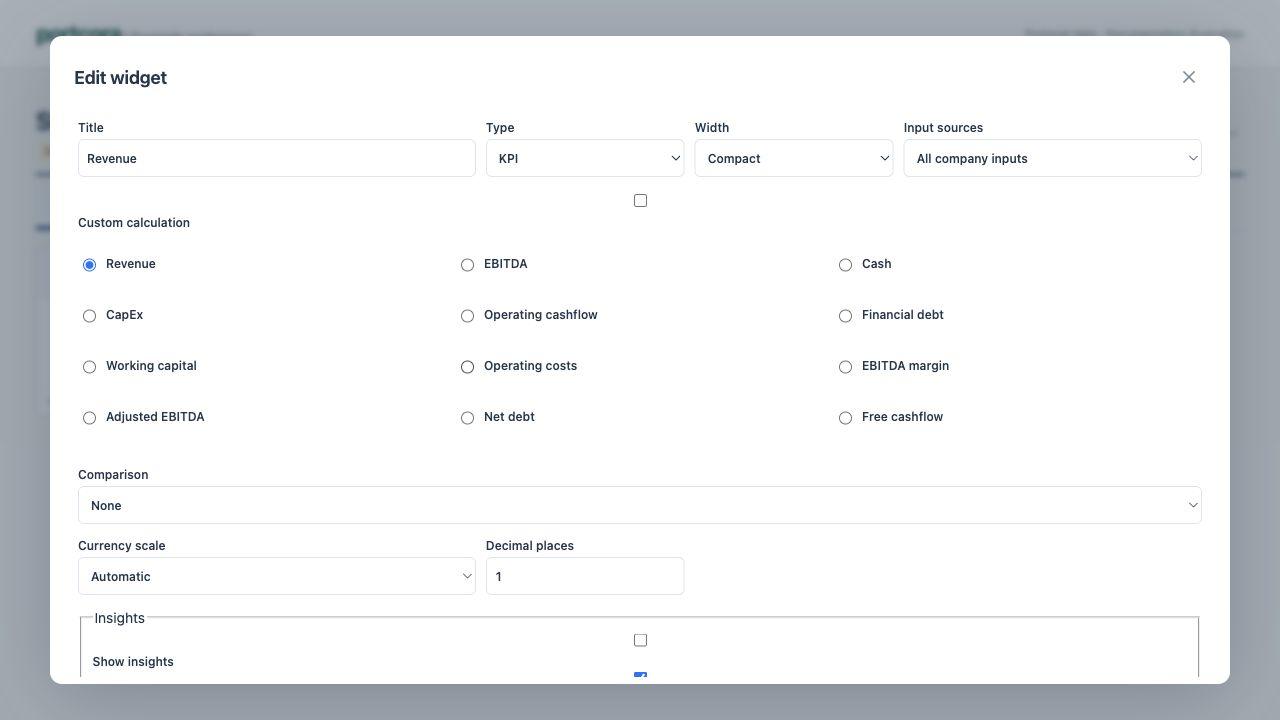
Current editor, using fictional data.
Edit and arrange widgets
A card's Options menu includes Edit, Duplicate, Page, Width and Remove. Some workspaces offer Edit with AI; review the result before saving.
Use layout drag controls to rearrange cards. Actions save as they complete; the primary screen has no overall “Save dashboard” button. Removing a card changes the layout, not financial observations.
Add a page
Open More options → Add page, enter Page name, then choose Add. Use a widget's Page action to move it.
Check the result
Reopen the dashboard and confirm title, placement, width and reporting context. A chart can look right but use the wrong scenario or source policy; check evidence as well as appearance.
Read widget reference and monthly review.