How to import accounting actuals
Follow the five-step accounting import, confirm mapping and inspect evidence before committing actuals.
Before you start
You need import permission for the selected company, complete accounting exports for the intended YTD coverage and the correct company perimeter. Read supported files. Do not upload customer files to this public help centre.
The wizard follows Upload → Confirm files → Mapping → Import preview → Import.
1. Upload
Open Data → Import financial data, choose Fund and Company, then Choose files. Select a supported trial balance and/or dated ledger. Add a reference mapping if you have one.
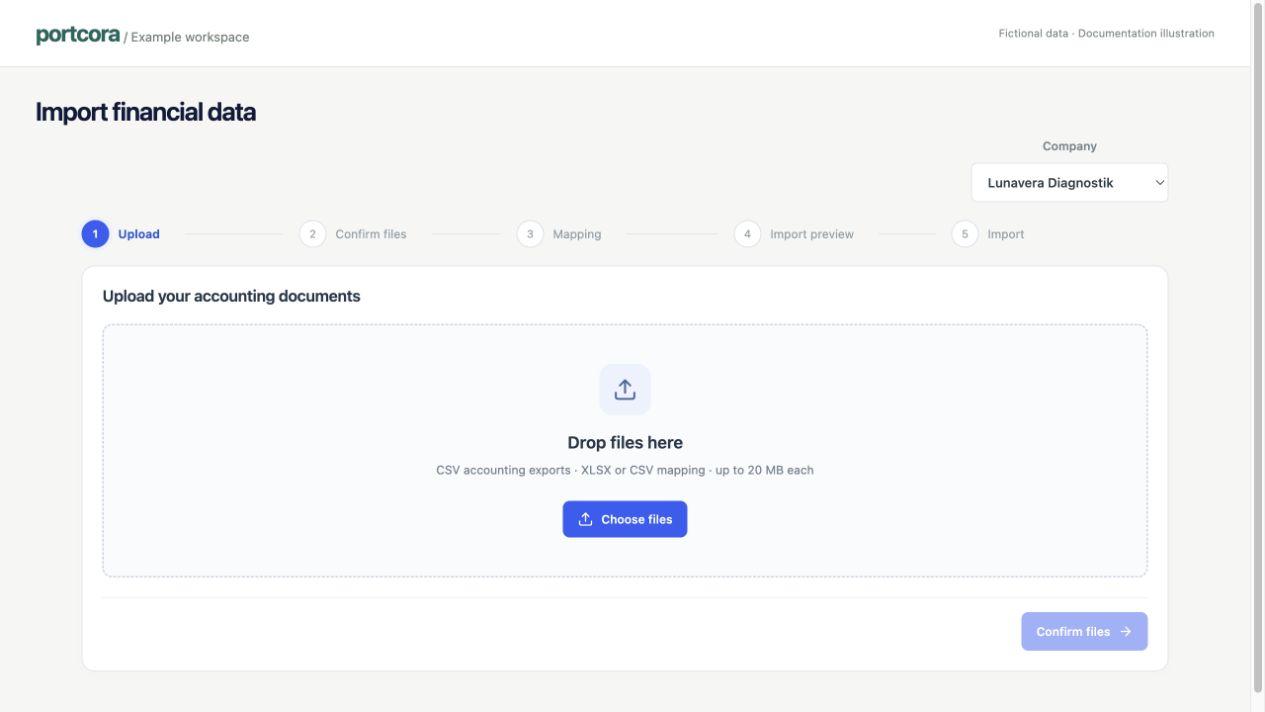
Example company; no customer files are shown.
2. Confirm files
Review detected file roles and the company. Set Coverage starts and Closing month to complete January-to-closing-month coverage. Mark irrelevant files Not used in this import.
Perimeter comes from company setup. If wrong, stop and resolve setup; the wizard is not a perimeter editor.
3. Review and save mapping
Resolve every Needs mapping or Conflict row. Select reporting lines manually, or use Map with AI where available and review every proposal.
Choose Save Mapping v1 for the first version or Save new mapping version for changed assignments. If unchanged, use the continuation offered by the screen.
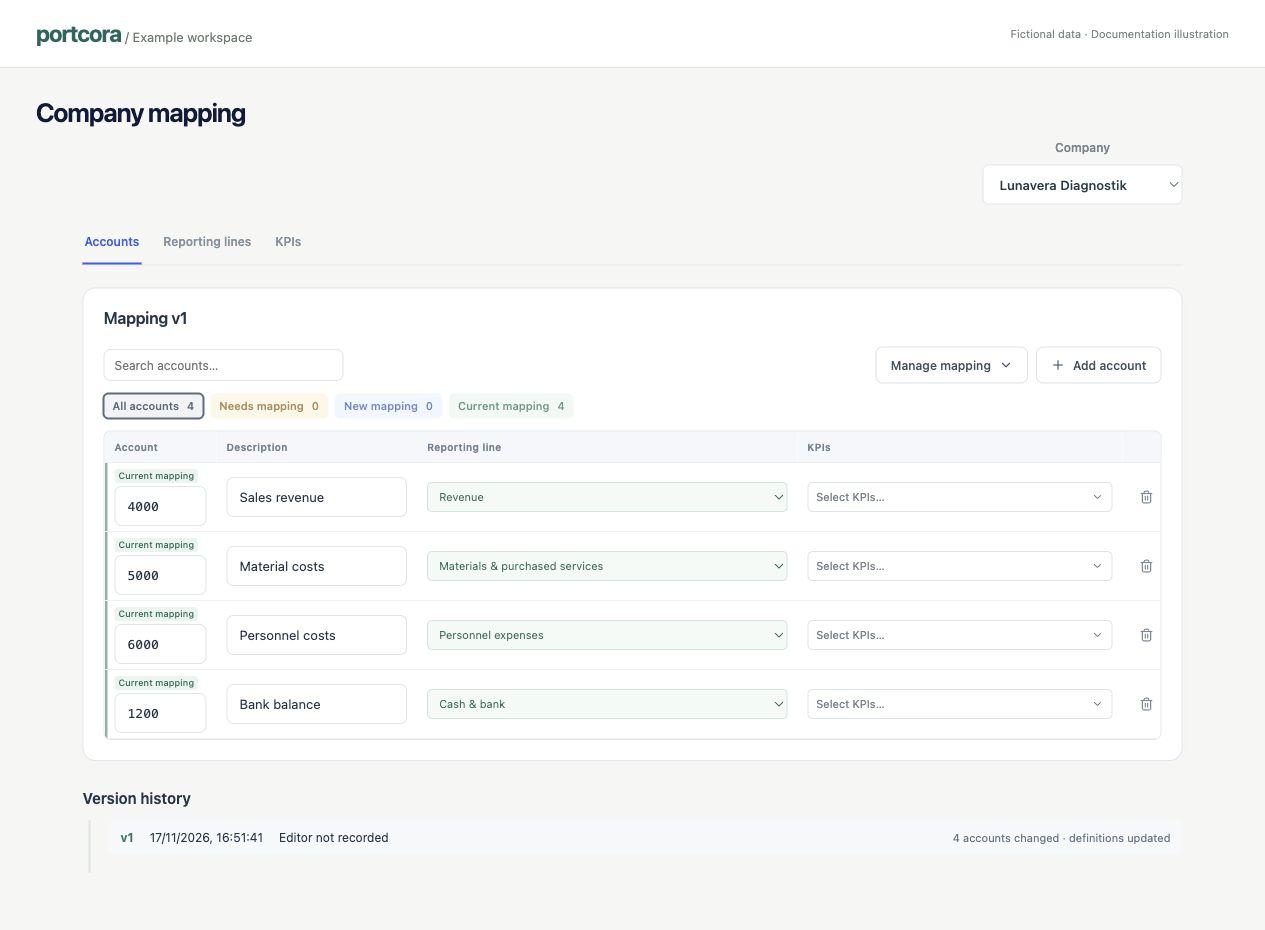
Fictional accounts illustrating the current mapping interface.
This step already saves a change
Saving persists a reusable mapping version before final import. Cancelling later prevents actuals import but does not undo the saved mapping. Previous receipts retain the version they used.
4. Review the import preview
Review Profit & loss, Balance sheet, KPIs and Reconciliation. Select a value for contributing accounts and calculation details. Resolve Resolve before importing issues and inspect proposed historical revisions.
Reconciliation checks help validate the package; they do not constitute finance approval.
5. Import actuals
Check company, coverage, reporting perimeter, mapping version, sources and Pending finance review. Choose Import actuals only when correct.
Check the result
Review the receipt, then choose View Portco financials. Confirm the values under the intended company, period and perimeter. Imported observations are reported actuals with draft approval: finance review remains pending.
Read review and corrections if blocked or if historical values change.